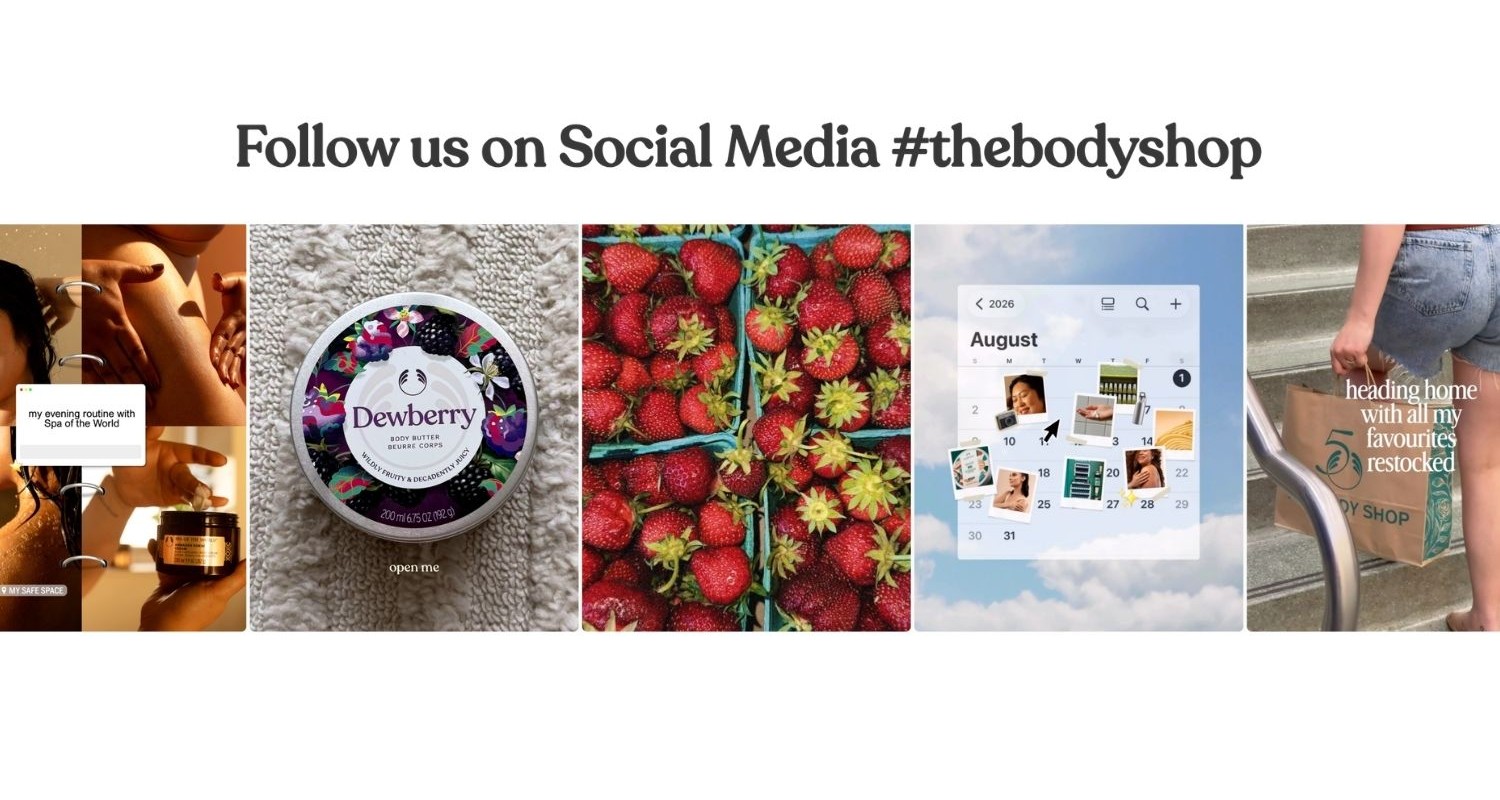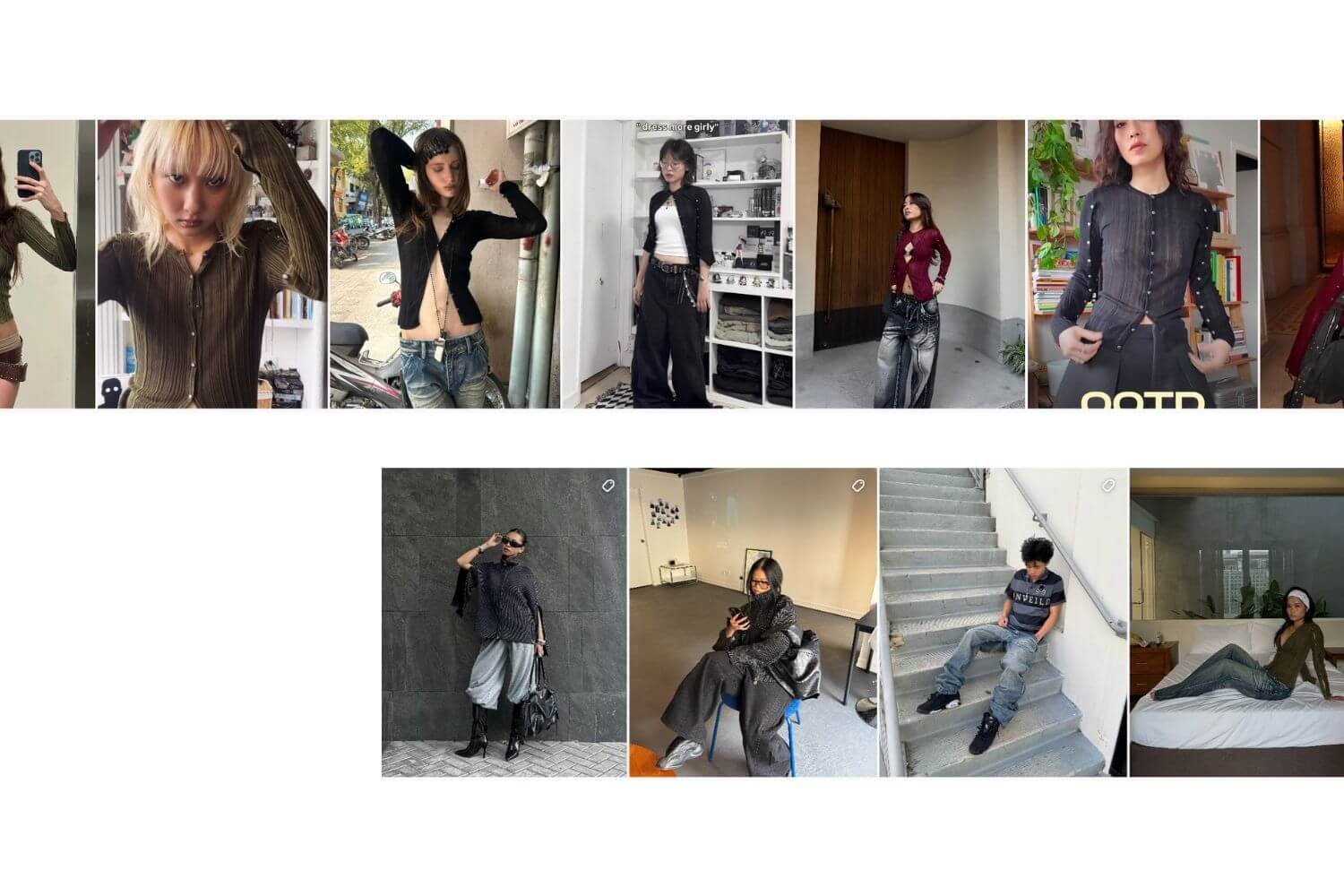
The Complete Guide to Social Media Widgets: How to Embed Social Feeds on your Website

A social media widget pulls your Instagram, TikTok, or other social content directly onto your website. Visitors see your latest posts without leaving the page, and the feed updates on its own as you post.
This guide covers what a social media widget is, why it helps a website, and how to add one. It also walks through the exact steps for Shopify, since that platform needs its own setup path and has dedicated apps built for it.
What Is a Social Media Widget?
A social media widget is a small embedded block on your website that displays content pulled from a social platform, most commonly Instagram. Unlike a single embedded post, a widget shows an ongoing feed: a grid, slider, or carousel of multiple posts that refreshes automatically.
The distinction matters. A one-off embed (copying a single post's share code) is static and needs manual updates. A social media feed widget connects to your account through an API and syncs new content on a schedule, so the website stays current without anyone touching the code.
Why Add Social Media Feeds to Your Website
Social content on a product page or homepage works as a form of social proof. A photo or video from a real customer or an influencer carries more weight than brand-written copy, because it comes from an independent source rather than the company itself.
Feeds also keep a site visually current. A homepage that displays the same hero banner for months can look stale. A synced social feed changes with every new post, giving returning visitors a reason to look again.
For ecommerce specifically, shoppable feeds shorten the path from inspiration to purchase. A shopper who likes a product shown in a social post can tag straight to that product page or add it to cart, instead of searching the catalog separately.
Types of Social Media Widgets
Not every widget serves the same goal. The main categories are:
- Single-platform feeds - typically Instagram, showing a grid or slider of recent posts and Reels.
- Multi-platform aggregators - pull content from several networks (Instagram, TikTok, Facebook, X) into one combined widget.
- UGC walls - display customer photos, videos, and tagged posts as a dedicated social proof section.
- Review and rating feeds - surface customer reviews and star ratings rather than social posts.
- Hashtag walls - show real-time posts tagged to a hashtag, often used for events or launches.
Most ecommerce brands start with a single-platform Instagram feed, since that's where most visual product content already lives, then add UGC or multi-platform options as the program grows.
How to Add a Social Media Widget to Your Website
There are three general paths to embedding a social feed, regardless of platform.
Official embed code. Most social platforms provide a basic share or embed code for a single post. This works for a one-time feature but does not auto-update into a scrolling feed. For instance, you can use Meta's embed a post guide.
A dedicated feed app. A widget app connects to your social account through its API, then generates an embeddable block you place on the page through a plugin, app, or short code snippet. This is the no-code path most site owners use.
A custom build. Developers can query a platform's API directly and build a fully custom feed display. This gives full control over markup and styling but needs ongoing maintenance as APIs change.
If you run a Shopify store, the cleanest path is a purpose-built Shopify app such as our app Mintt Instafeed rather than pasting widget code into theme files by hand. The next section explores the features available in Mintt Instafeed and covers the step-by-step setup process.
Why Choose Mintt Instafeed for Shopify?
From customizable layouts to shoppable posts and automatic syncing, the Mintt Instafeed app helps brands turn Instagram content into an engaging shopping experience without any coding. Here's a closer look at the key features that make Instafeed a popular choice for Shopify merchants.
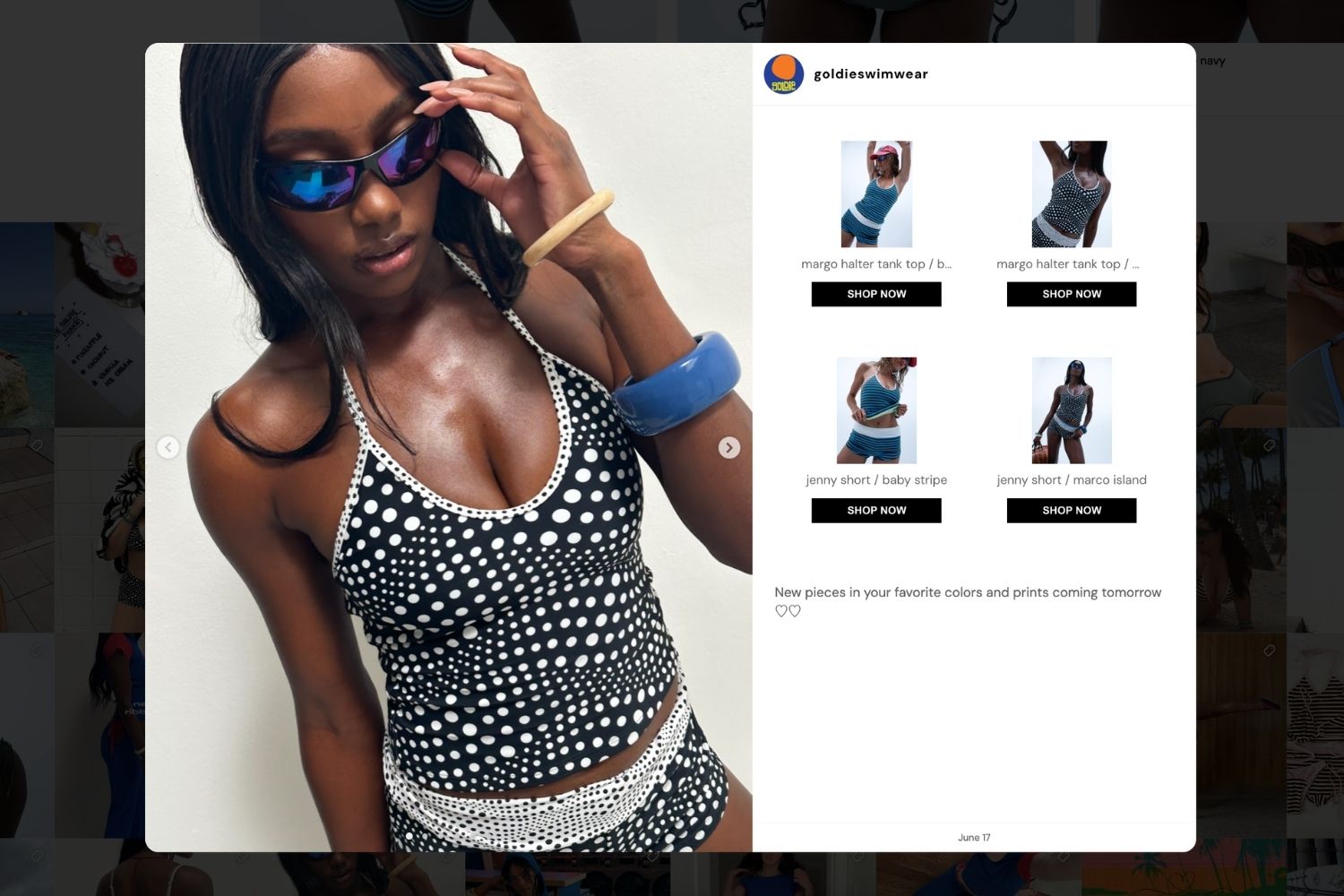
Shoppable Instagram post with tagged products powered by Mintt Instafeed, shown on swimwear brand Goldie Swimwear.
| Instagram integration | Connect your Instagram account in minutes with automatic feed syncing—no manual updates required. |
| Feed layouts | Display your content in responsive grid, slider/carousel, or highlight layouts that match your store design. |
| Shoppable feeds | Tag Shopify products and collections directly in Instagram posts so customers can shop from your feed. |
| Content sources | Showcase Instagram posts, Reels, tagged posts, hashtag feeds (supported plans), and customer-generated content. |
| Customization | Adjust spacing, colors, buttons, hover effects, captions, and other display settings without editing theme code. |
| Theme compatibility | Add the feed to your homepage, product pages, collection pages, or any Online Store 2.0 section using Shopify's theme editor. |
| Performance | Optimized for fast loading with automatic syncing and responsive layouts for desktop and mobile devices. |
| Free plan | Includes a free plan with unlimited page views and no watermark, making it easy to get started. |
| Advanced features | Paid plans unlock shoppable tagging, analytics, advanced filtering, multiple feeds, and additional customization options. |
| Best for | Shopify merchants who want a native, Instagram-first shopping experience that is easy to install and maintain. |
If Instagram is your main channel for product discovery and you want an app built specifically for Shopify with years of reviews behind it, Mintt Instafeed fits that brief. Add Instafeed to your store to see a shoppable feed running on your own theme.
How to Embed Social Media Feeds on Shopify with Mintt Instafeed
- Open the Shopify App Store and search for a social feed or Instagram app.
- Install Instafeed - Instagram feed app and connect your Instagram.
- Choose a layout (grid, slider, or shoppable feed) and pick which posts or hashtags to include.
- Add the feed block to a page through the Shopify theme editor - homepage, product page, or collection page.
- Publish and confirm the feed displays and syncs correctly on both desktop and mobile.
Because the app handles the API connection and sync, no theme code edits are required for a standard install.
Examples: Websites With Social Media Feeds Done Well
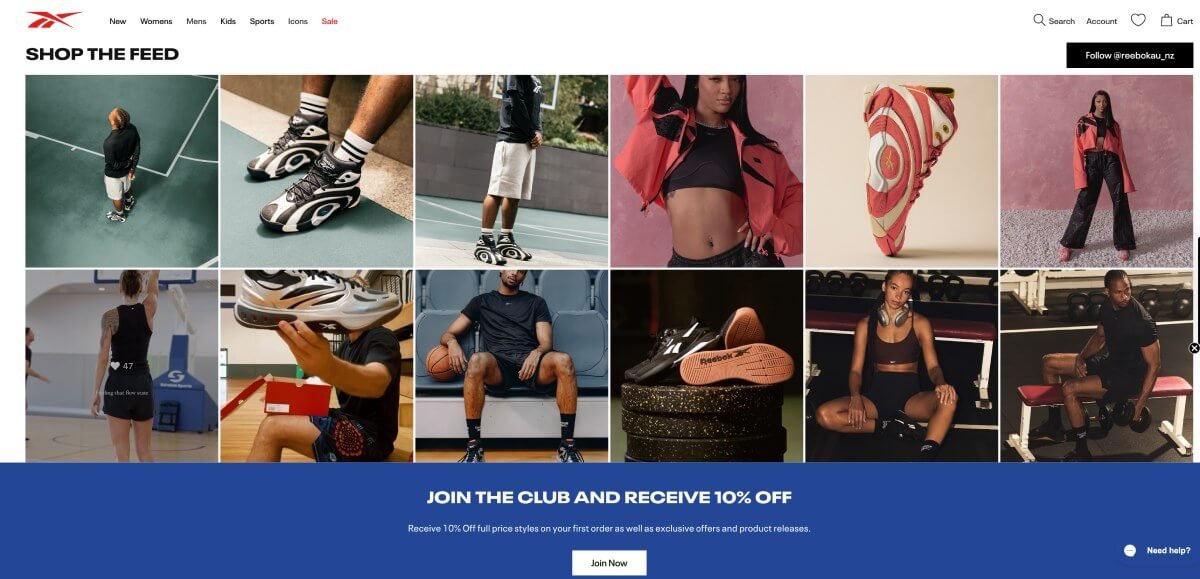
Reebok Australia's homepage featuring a Shopify Instagram feed using Mintt Studio.
Reebok Australia uses Mintt Instafeed to display a shoppable Instagram feed across its storefront, pulling product-tagged posts directly onto category and homepage sections. See the full case study for how the feed was set up and placed.
Beyond that single case, Mintt Instafeed merchants generally fall into three patterns:
Brand presence. A store connects its Instagram account and lets the feed sync automatically, keeping the homepage visually current without manual updates.
Conversion and merchandising. A store curates feeds by product or collection page, tagging posts so a shopper can move from an Instagram photo straight to add-to-cart.
Social proof and UGC. A store displays customer and influencer content alongside products, using real photos and videos to back up the product description.
Best Practices for Choosing and Designing Your Widget
Match the feed layout to your site's existing design: A grid works for most homepages; a slider suits a narrower section like a product page sidebar.
Curate rather than auto-display everything: Mintt Instafeed lets you pin, hide, or reorder posts, which keeps off-brand or low-quality content out of the feed.
Test on mobile first: More storefront traffic arrives on mobile than desktop for most ecommerce brands, so the feed needs to read clearly at a narrow width before it's judged on desktop.
Performance is just as important as appearance. Instafeed by Mintt automatically lazy-loads images to help keep your Shopify store fast without requiring any extra configuration. If you're looking for more ways to get the most out of your Instagram feed, read our guide on Instagram feed best practises.
Frequently Asked Questions
What is a social media widget?
It's an embedded block on a website that displays content synced from a social media account, typically Instagram, and updates automatically as new posts go live.
Is it free to embed social media feeds on my website?
It depends on the app. Many feed apps, including Mintt Instafeed, offer a free plan with core display features, then charge for advanced features like shoppable tagging or UGC collection.
Will a social widget slow down my website?
A well-built widget lazy-loads its images and shouldn't meaningfully affect page speed. Test your site's load time after installing any widget to confirm.
Can I embed social media feeds on Shopify without coding?
Yes. Shopify apps like Mintt Instafeed connect to your social account and add a feed block through the theme editor, with no code edits needed for a standard setup.
What's the difference between an embed code and a feed widget app?
A basic embed code displays one static post and needs manual updates. A feed widget app connects through an API and keeps the display synced automatically as you post.
Make Your Storefront Feel Current
A social media widget turns a static homepage into something that updates itself, and on Shopify, it can turn that content into a direct path to checkout. Make your Instagram shoppable with Instafeed and see how a synced feed looks on your own store.
Updated by Mintt Studio Team on July 31, 2026

We are a small team building big things as a Shopify Partner. Offering reliable solutions for merchants, our apps reach 900 million customers every month.