Best Practices for Instagram Feed Widget for Shopify Brands - with Examples
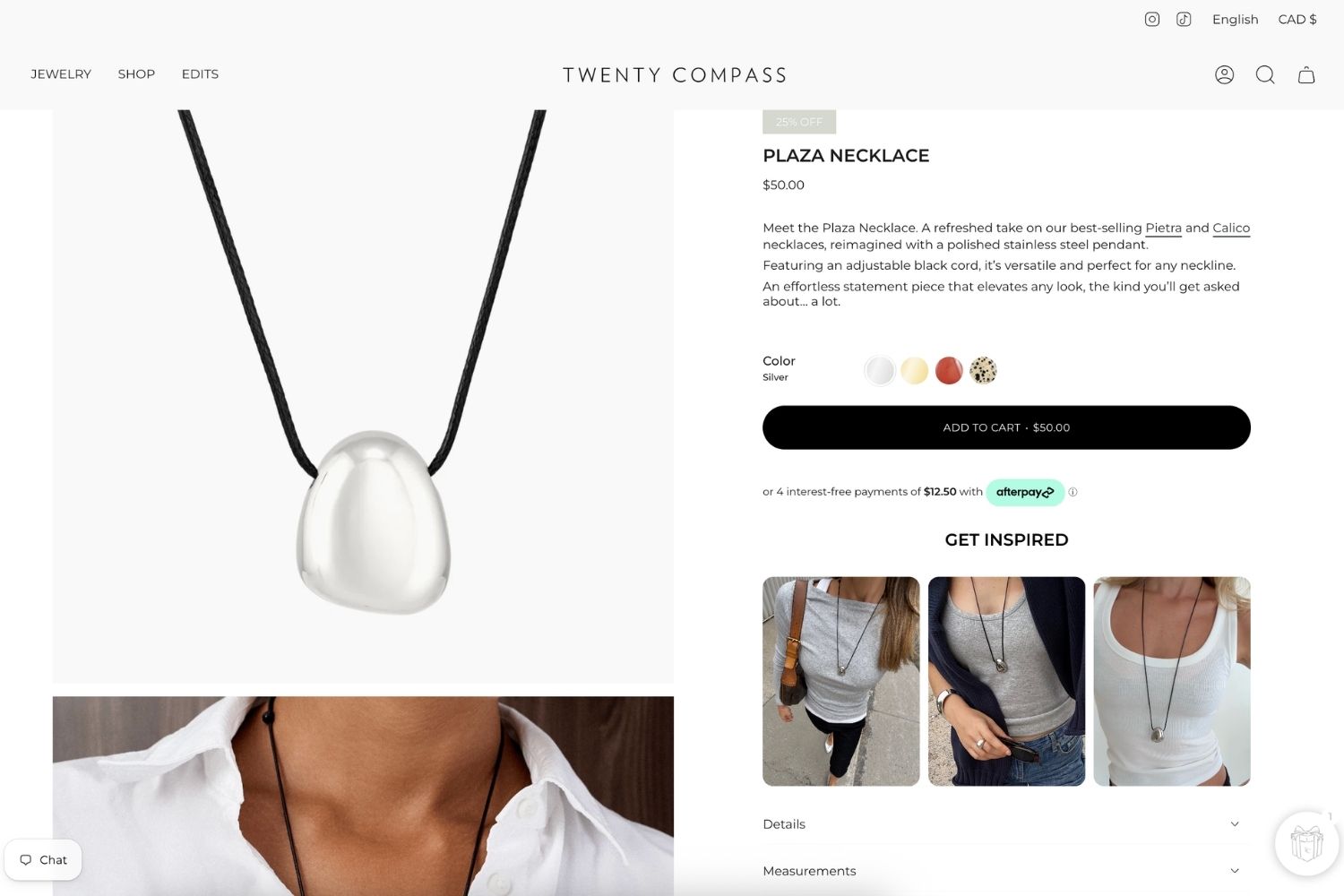
An Instagram feed on your Shopify store earns its place when shoppers can act on it. A pretty grid at the bottom of the homepage builds trust. A tagged feed next to the Add to cart button sells.
This guide covers four practices, shown on live stores running our app, Mintt Instafeed.
| Practice | Store example | Page | Main goal |
|---|---|---|---|
| 1. Match the layout to the page | Reebok Australia | Homepage | Brand presence |
| 2. Stack social proof with UGC and Reels | MOST Elements | Homepage | Trust |
| 3. Set it up for conversions | CRZ YOGA | Homepage and product pages | Add to cart |
| 4. Measure clicks and influenced orders | Mintt Instafeed Analytics | Shopify Admin | Proof of impact |
1. Match the layout to the job of the page
Pick the layout by what you want the shopper to do next. A grid says "this is who we are." A slider or strip says "keep scrolling, then shop."
Reebok Australia
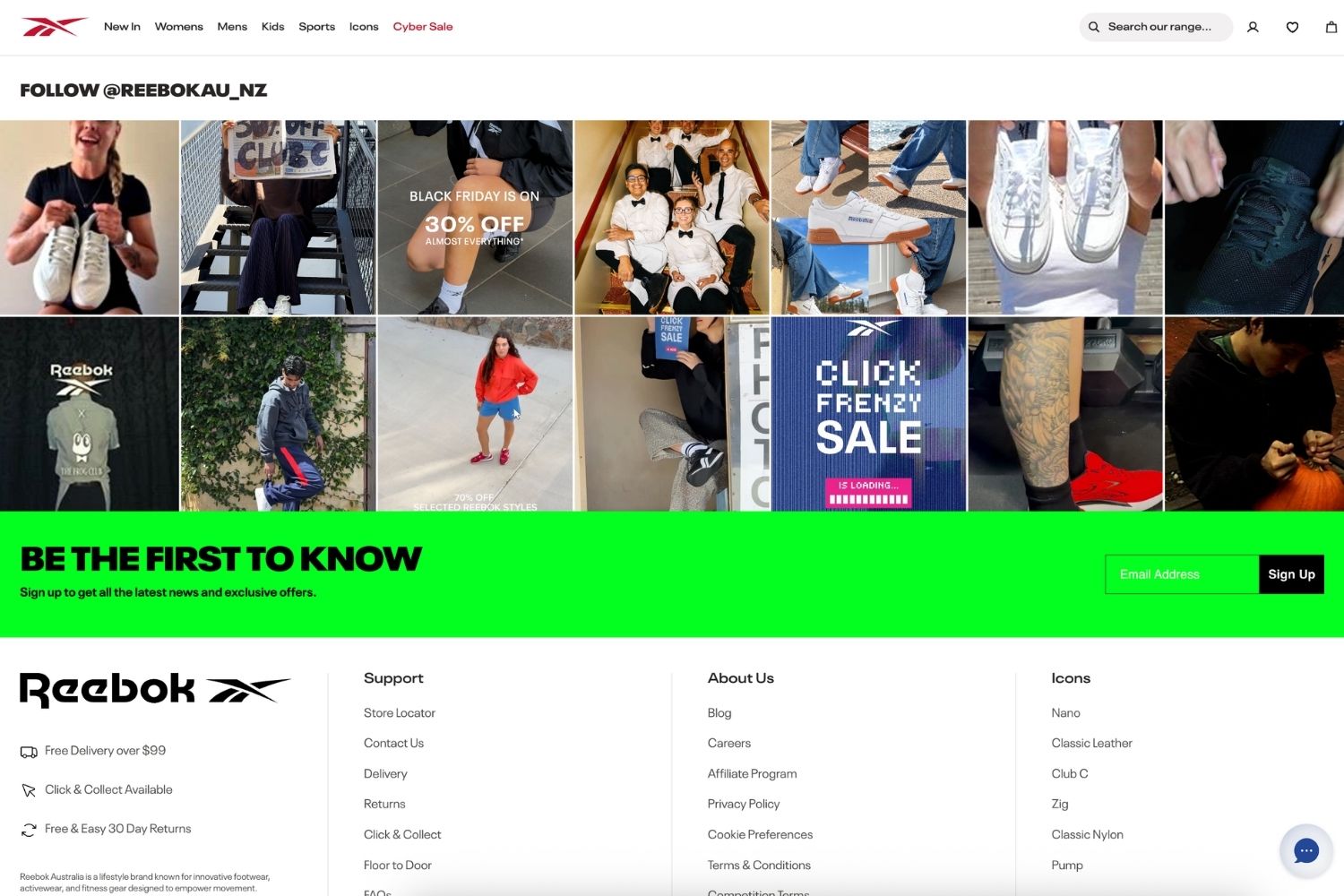
Reebok Australia closes its homepage with an Instagram feed section. It shows 12 recent posts in a full-width grid, two rows of six. Hovering a tile shows its like count, and clicking opens a popup with the caption and post date.
The grid sits after the sale collections and right before the newsletter signup. The feed shows the brand in real life: collabs, events, sneakers on the street. Then it hands off to the email capture.
See how Reebok Australia uses Instagram across its store in the full case study.
How to apply it
- Use a grid on the homepage when the goal is brand presence. Two rows of recent posts give a quick read of your style without pushing a sale.
- Use a slider or reels-style layout when you have many posts or vertical video. It saves vertical space and invites a swipe.
- Place the feed where a next step follows. Reebok puts newsletter signup below the grid, so engaged visitors have somewhere to go.
- Let auto-sync keep it fresh. New posts appear without manual updates, so the homepage changes as often as your Instagram does.
2. Stack social proof with UGC and Reels
Brand photos show the product at its best. Videos of customers or creatives using the product answers "does this work for someone like me?" before the shopper asks.
MOST Elements
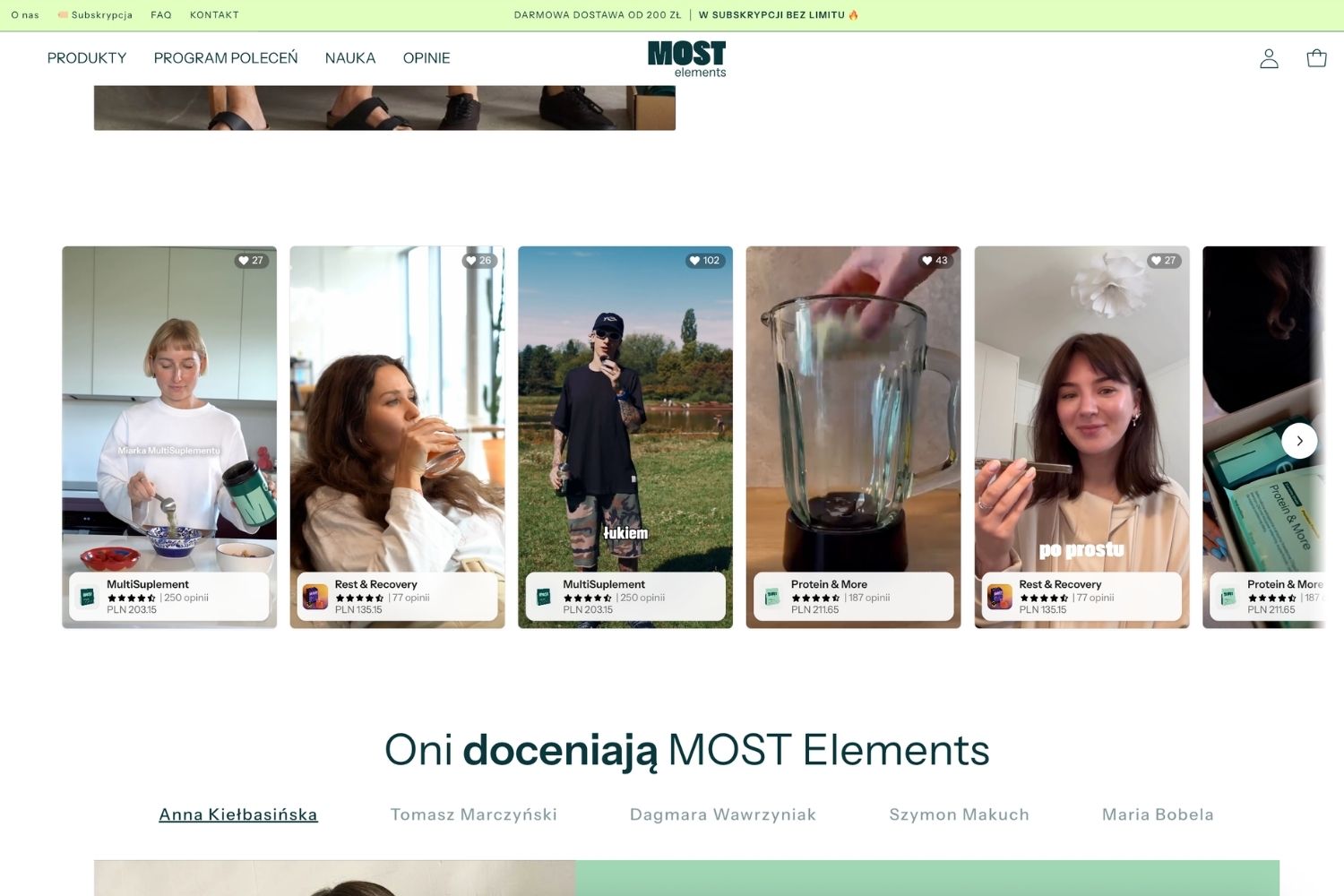
MOST Elements is a Polish supplement brand selling morning, everyday and evening shakes. Its homepage runs a horizontal strip of vertical, creator-style videos: someone making granola, someone shaking a bottle, a blender mid-mix.
Each video carries three layers of proof at once:
- Instagram likes in the top corner on the posts
- A product card naming the shake shown, such as MultiSuplement or Rest & Recovery
- Star rating, review count and price on that card
The card links straight to the product page. A shopper sees the product in use, sees that others liked it, sees that hundreds reviewed it, and can click through in one move.
How to apply it
- Feature customer and influencer posts, not only brand content. Mintt Instafeed displays tagged customer posts and influencer content as social proof.
- Lead with video. Reels-style layouts fit vertical clips, and UGC videos play with no view limits.
- Tag every post you show. A UGC post without a product tag earns trust but gives the shopper nowhere to go.
- Pair the feed with your reviews. MOST Elements shows ratings on the feed's product cards, so two kinds of proof appear in one place.
- Place it after the product story. MOST Elements puts the strip below its founder story and above athlete endorsements, inside a run of trust content.
For more ideas, read our UGC best practices for Shopify brands.
3. Set it up for conversions on product pages
The product page is where a shopper decides. A feed there should show only posts with that product, tagged and ready to add to cart. That takes four settings, and CRZ YOGA shows what the result looks like.
CRZ YOGA
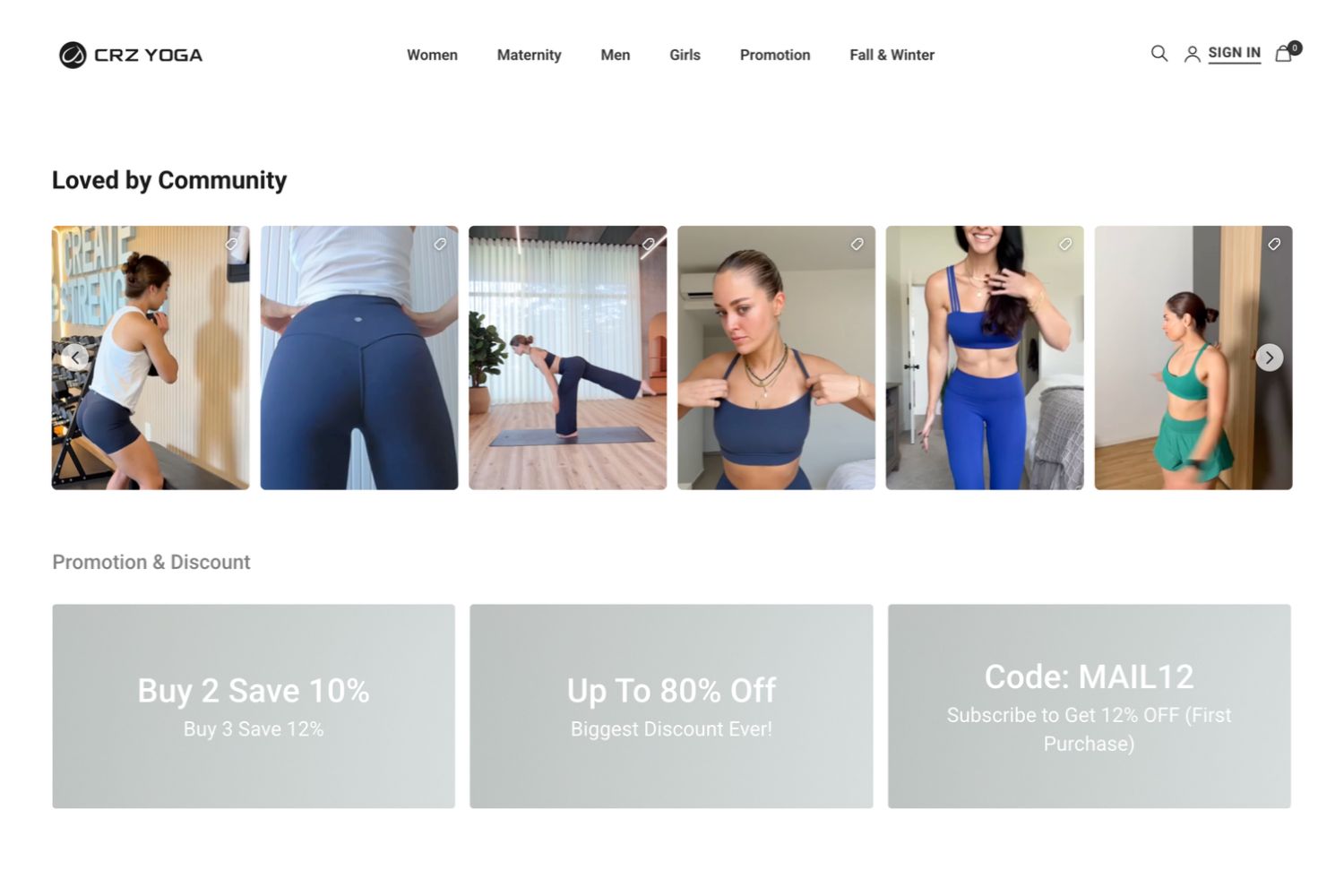
CRZ YOGA sells athleisure for women, men, girls and maternity. It uses Mintt Instafeed in two places, each with a different job.
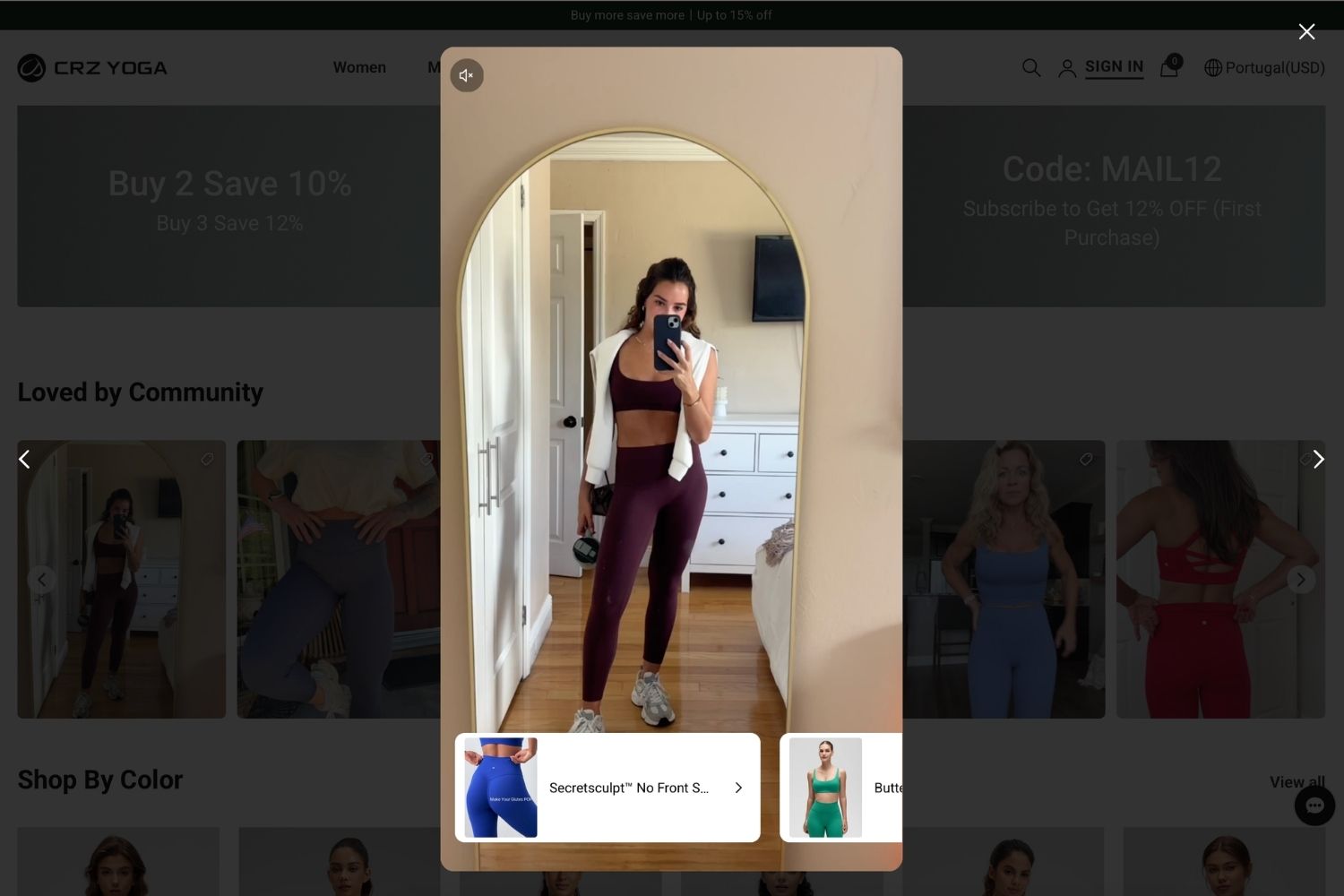
On the homepage, a slider headed Loved by Community shows Instagram posts. Every one carries a product tag. Open a post and the popup plays the video with product cards underneath with a quick access to checkout.
On product pages, the feed sits inside the buy box. It appears directly under the Add to cart button and payment icons, above the product details. On the Secretsculpt No Front Seam Legging page, there's a slider featuring 16 posts, all showcasing that legging.
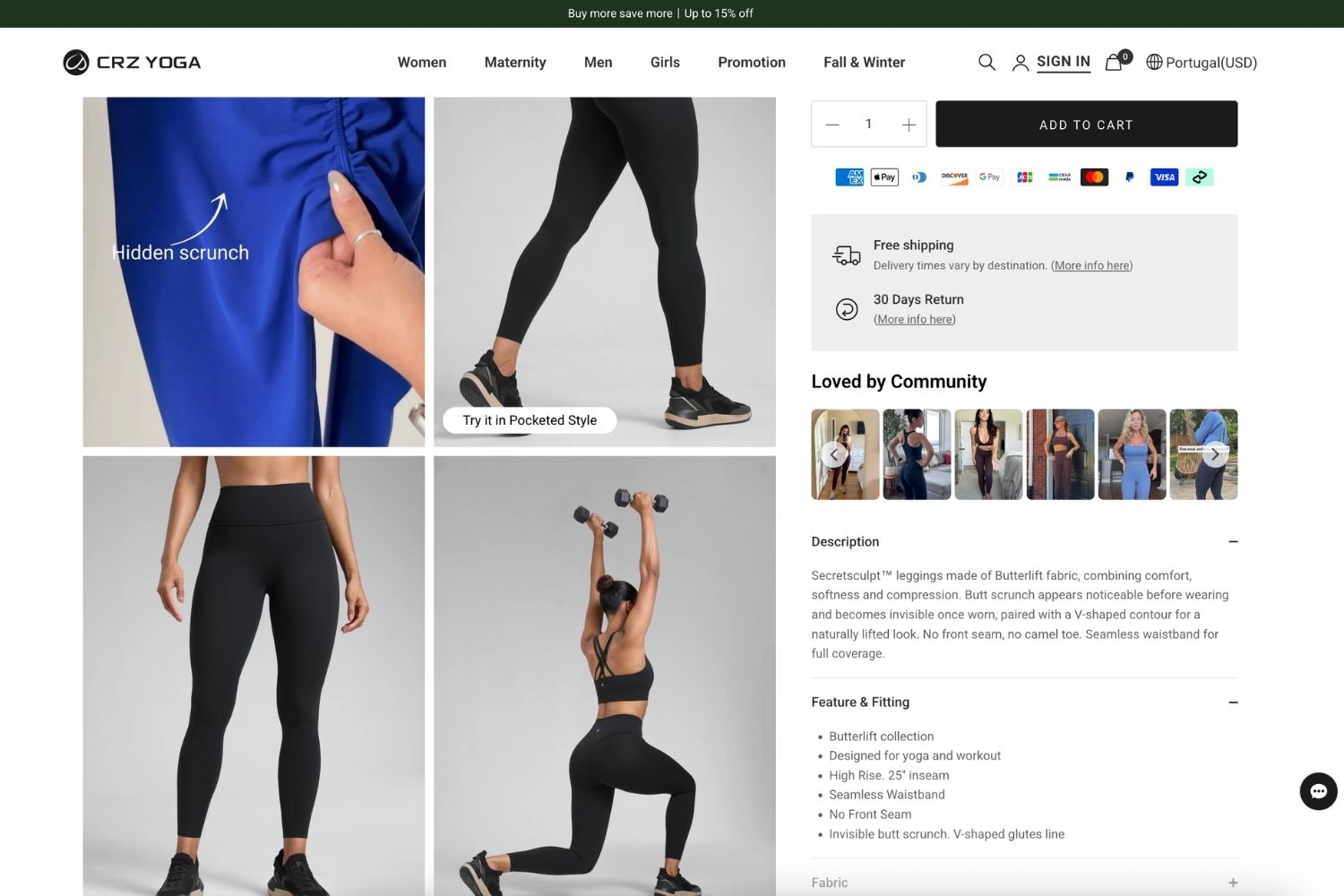
That placement is the point. The shopper has picked a size and is one click from buying. A row of community wearing the product answers the last question: how will this look on me? Here are a few simple steps for increasing conversions.
Step 1: Show the products in your posts
Product tagging connects each post to the products it shows. When you display which products are shown in the post, it'll increase your conversions as shoppers would not need to search for the item in the shop.
Start with your best-performing posts and the ones that clearly show bestsellers. If you already tag products on Instagram, Mintt Instafeed allows you to tag products automatically. New posts then arrive pre-tagged, and you can still adjust tags by hand. Learn more about setting the feed up for conversions on product pages.
Step 2: Stack social proof with UGC and Reels with shoppable strip layout
The shoppable strip of Mintt Instafeed shows each post with its tagged product card, star rating and price. It is the layout MOST Elements uses on its homepage.
You can set it under feed settings, and preview it on your store. It works best once step 1 is done. Place it on the homepage or below product descriptions, where shoppers already browse.
Step 3: Show matching posts on product and collection pages
This is the setting behind CRZ YOGA's product pages. Each product page shows only the posts tagged with that product. Mintt Instafeed allows you to automatize the matching post.
| Option | What the shopper sees | Best for |
|---|---|---|
| Off | The full feed, unfiltered | A general brand feed |
| On, matching posts only | Only posts tagged with that page's product or collection | Catalogs where most products have tagged posts |
| On, matching posts or fallback | Matching posts first, then recent posts | Making sure the feed never shows empty |
Choose based on your tagging coverage. The filter is only as good as your tags. More tagged posts in step 1 means more product pages with a relevant feed.
For more conversion-focused Instagram feed widget set-up, read our help documentation: How to set up Mintt Instafeed for conversions?
Where to place the feed on a product page
- In the buy box, under Add to cart, like CRZ YOGA. Best for apparel and anything where fit or look drives the decision.
- Below the product description. A softer spot that suits products shoppers research before buying.
- Near reviews. Tagged posts next to written reviews give the shopper photo and text proof side by side.
4. Measure clicks and influenced orders
Mintt Instafeed allows you to track the influenced orders. Turn on Analytics the day you set up your feed. Tracking is off by default and data is not backfilled, so every day it stays off is a day you cannot report on.
There are two options to track your data: Engagement + influenced orders tracks views, clicks and the orders the feed influenced. It installs a storefront pixel and may ask for extra Shopify permissions. Engagement only tracks views and clicks (Analytics is on the Plus plan).
What to watch
| Metric | What it tells you |
|---|---|
| Total views | How often the feed scrolled into view |
| Average click rate | Share of views that led to a post open or product click |
| Top posts | Which posts get clicked most |
| Top products | Which tagged products get clicked most (needs product tags) |
| Influenced orders | Orders from visits where the shopper opened a post, viewed a product or added to cart from the feed |
| Influenced revenue | Revenue from those orders (needs Engagement + influenced orders) |
Use Compare to previous period over 7, 30 or 90 days to see trends. Use the feed dropdown to compare placements, such as homepage against product pages.
Turn the numbers into actions
- Top posts tell you what content to make more of. Pin or re-share the formats that win.
- Top products show which items the feed sells best. Tag more posts with them so the product page filter has more to show.
- A low click rate often points to untagged posts or a placement too far down the page. Check tagging first, then move the feed closer to Add to cart.
Quick checklist for setting up your Instagram feed widget for success
- Homepage feed uses a layout that fits its job: grid for brand, slider or strip for shopping
- Best-performing and bestseller posts are tagged with products
- Add to cart and Show prices are on
- Shoppable strip is set where shoppers browse
- Product pages show matching posts, with fallback if tagging coverage is thin
- Customer and influencer posts are in the mix, not only brand content
- Analytics is on with Engagement + influenced orders
FAQ
Which plan do I need?
Manual product tagging and Add to cart work on Pro and Plus. Auto-tagging, product and collection page filters, and Analytics need Plus.
Can I mix manual tags with auto-tagging?
Yes. Adjust any post's tags in Manage posts. To remove an auto-added tag, delete it on Instagram.
What shows on a product page with no tagged posts?
With "matching posts only", nothing. With "matching posts or fallback", your most recent posts.
Why is my Analytics empty?
Tracking is off until you enable it under Instafeed > Analytics, and past data is not backfilled.
Make your Instagram shoppable on your Shopify store
Mintt Instafeed has run on Shopify since 2016 and holds a 4.9-star rating on the Shopify App Store. Setup needs no code, it's fast and secure, and the full conversion guide lives in the Mintt Instafeed docs.
Add Mintt Instafeed to your store
Updated by Mintt Studio Team on November 11, 2026

We are a small team building big things as a Shopify Partner. Offering reliable solutions for merchants, our apps reach 900 million customers every month.